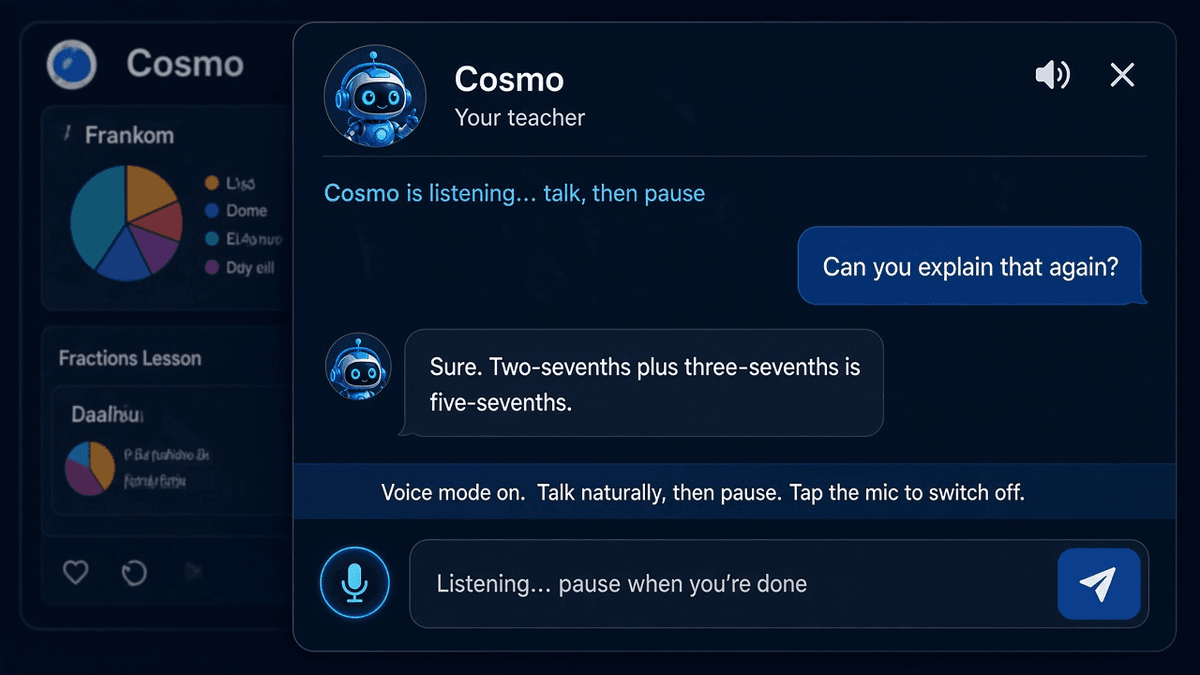

Now it's the Parent's Turn..

Catch up: Part 1 covered planning and setup, Part 2 shipped the foundations, the data model, and the student dashboard. This post is about the parent side including the control room that makes the whole learning system manageable, and then the weekly challenges my son has been waiting for.
The Other Half of the App
In Part 2 we built the fun half. My son got his gamified dashboard, the YouTube lesson player, the quizzes, and the reward shop. But a homeschool app is only useful to me if I can actually put content in front of him, see how he is doing, and hand out rewards. That is what this post is about.
Phases 4 and 5 cover two things. First, the parent console, where I build courses, manage the reward shop, and export the learning history. Second, the Friday Challenge, the weekly review quiz that pulls together what was learned each week and pays out double points.
The design rule for the parent side was deliberate. We reused the same dark space theme and the same design tokens, but we did not copy the student dashboard. The parent console should feel like a calm, data-dense control room. No mascot, no streak flames, no gamification clutter. Just the numbers, the content tools, and the controls.
Step 1: Signing In and Roles
Before the parent can do anything, the app needs to know who is signed in. We wired up Convex Auth with a simple entry screen. You arrive, pick Enter as Parent or Enter as Student, and the app creates your profile with the right role.
Step 2: The Parent Dashboard
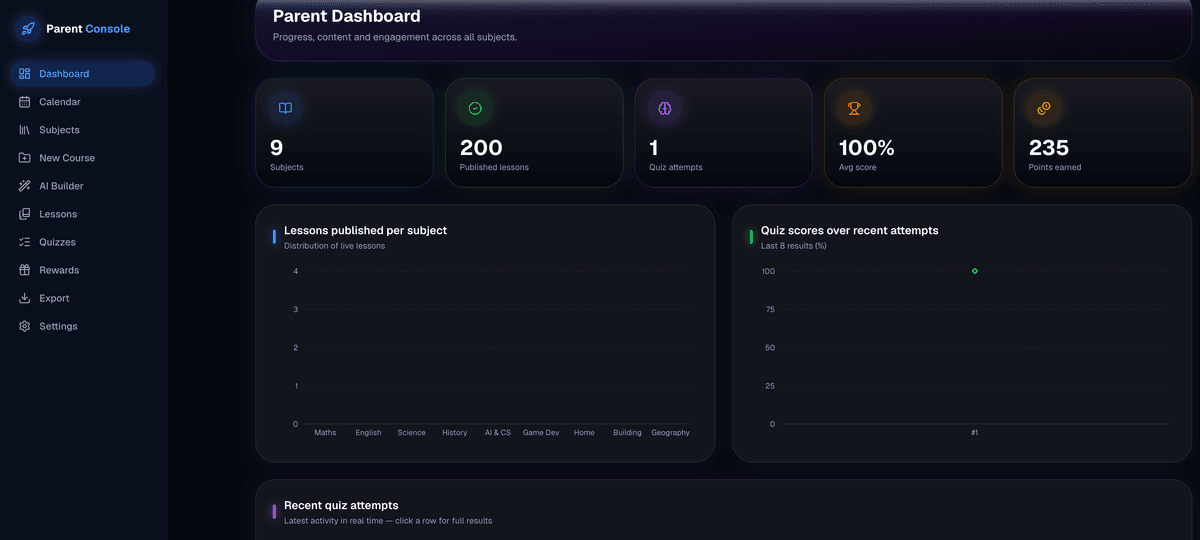
Figure 1: The parent dashboard main page. We have a simple way to see the latest statistics and quiz attempts by the student.
The first thing I see as a parent is an overview. How many subjects and published lessons exist, how many quiz attempts have been made, the average score, and the total points earned. All of it is live, so when my son finishes a quiz the numbers and the score trend update in real time through Convex's subscriptions.
I built two charts with Recharts. A bar chart of lessons published per subject, with each bar in the subject's accent colour, and an area chart showing quiz scores across recent attempts. Underneath is a table of the latest quiz results.
Step 3: Building the Courses
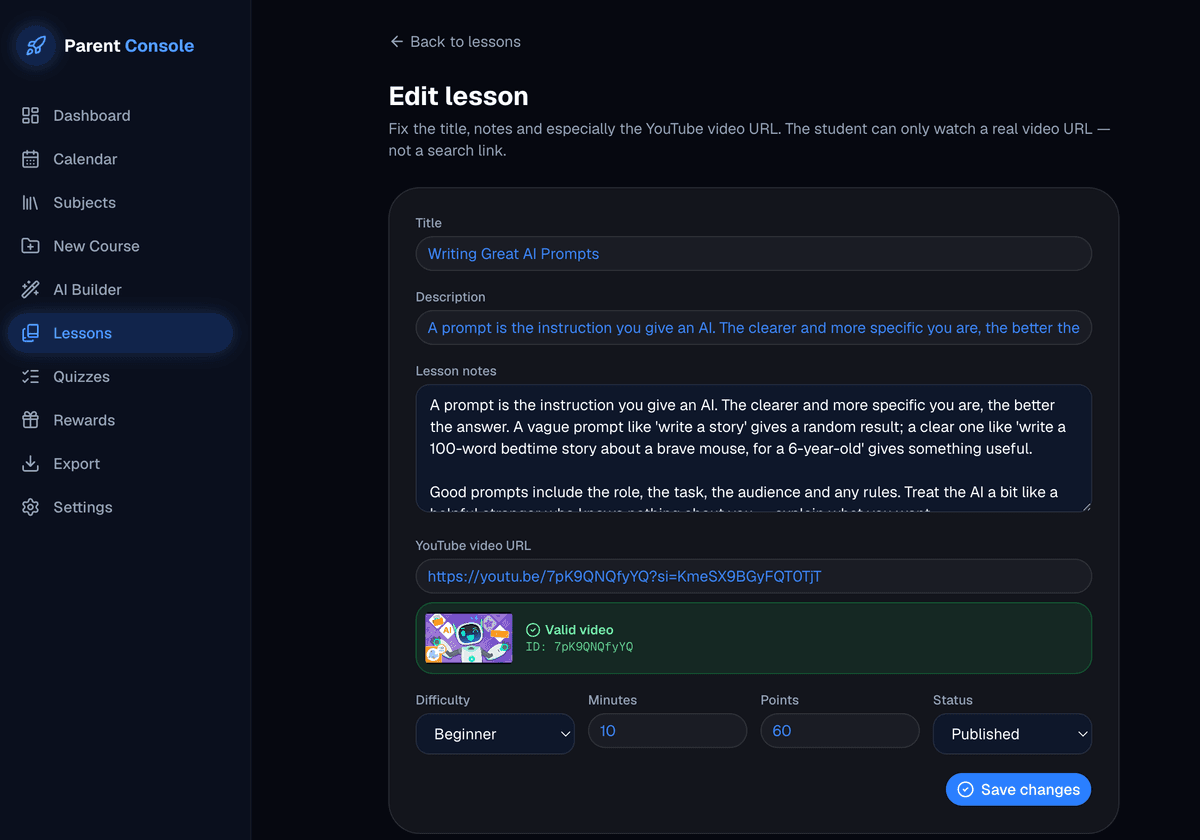
Figure 2: Adding and editing courses in the parent dashboard. The YouTube system recommends a search string to click and find the perfect video to match the lesson.
This was the largest single piece of the project so far. I wanted to be able to sit down and build an entire course in one go. Define a subject, lay out its topics, then add lessons under each topic, each with a YouTube video, notes, a difficulty level, points, and a set of quiz questions with correct answers and explanations.
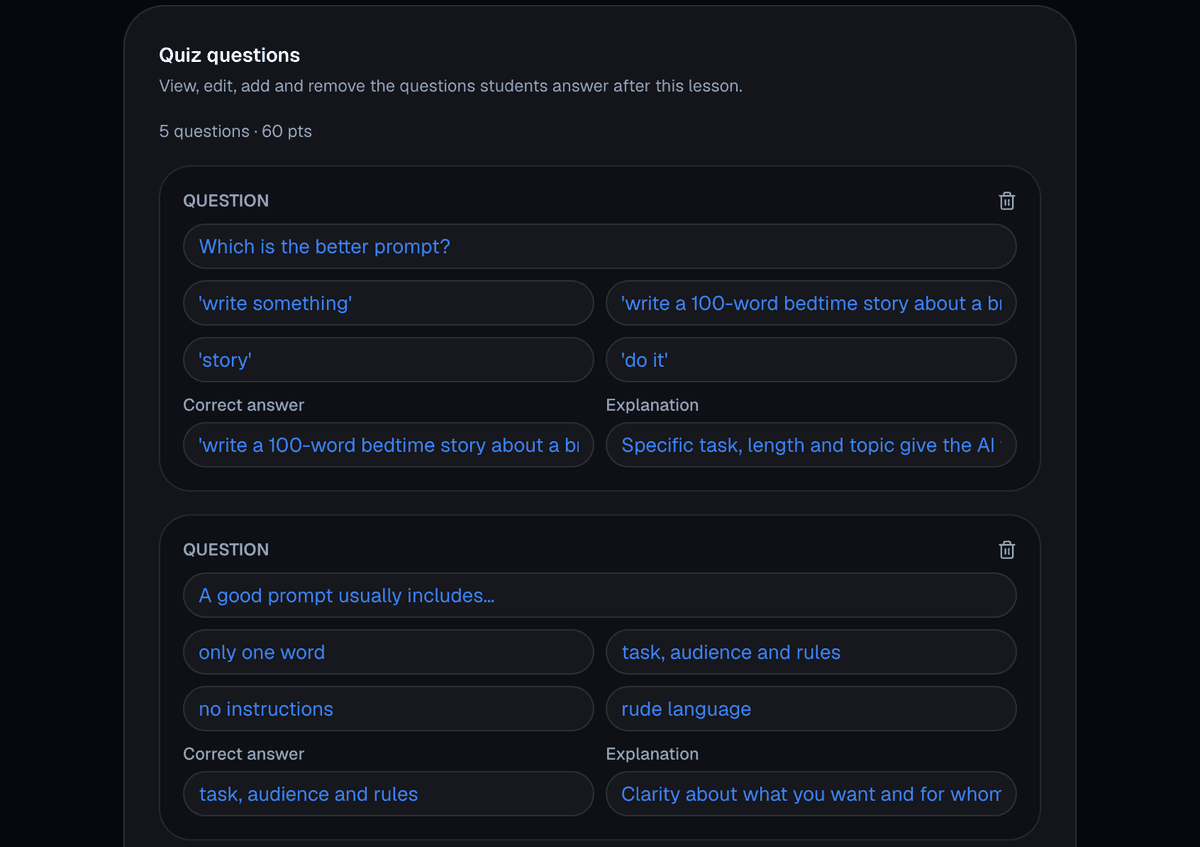
Figure 3: The quiz section to add and edit quiz questions.
The course builder is a multi-section form that does exactly that. You fill in the subject, add as many topics as you like, then add lessons and assign each one to a topic. Each lesson expands to reveal its fields and a quiz-question editor.
Builder | What it does | How it saves |
|---|---|---|
Course builder | Define a subject, its topics, and lessons (video, notes, difficulty, points, quiz questions) in one multi-section form. | One Convex transaction creates the subject, all topics, all lessons, their quizzes, and every question atomically. It either all goes in or none of it does. |
Single-lesson builder | Add one lesson to an existing subject without standing up a whole course. | Same transactional save. |
Lesson manager | Lists every lesson and lets me publish or unpublish with one click. | Drafts stay hidden from the student until I flip them to published, a rule enforced in the student-facing queries. |
The transactional save matters because a half-saved course would leave orphaned lessons pointing at topics that do not exist. Transactions are the reason the data stays clean.
Step 4: The Reward Manager
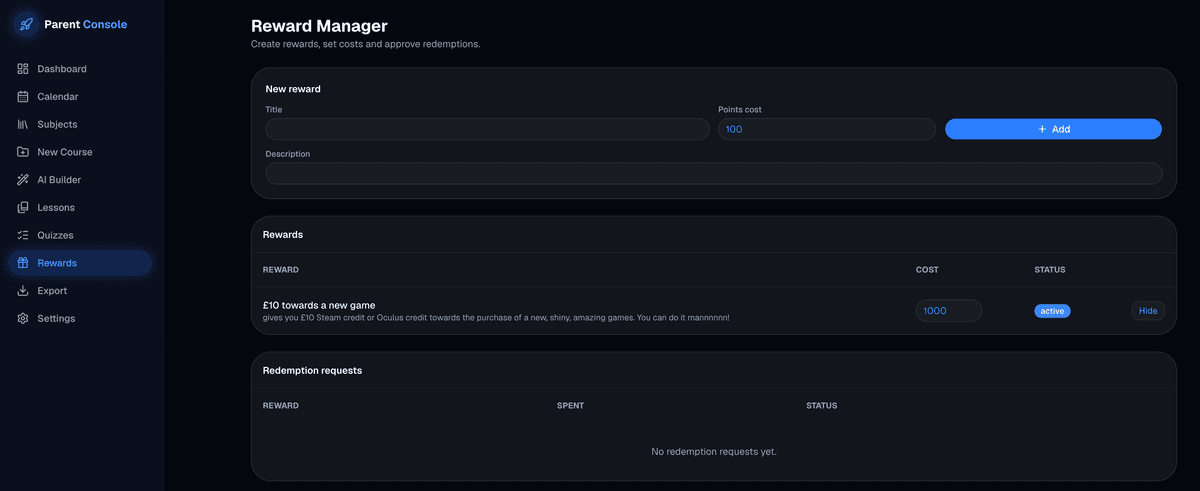
Figure 4: The Rewards shop dashboard to add and edit new rewards.
The reward shop only works if I can stock it. The reward manager lets me create rewards. Whether they are a toy, pocket money, extra screen time, whatever I decide , set a points cost, and hide or show them. When my son redeems something, it shows up as a request that I can approve from the same screen.
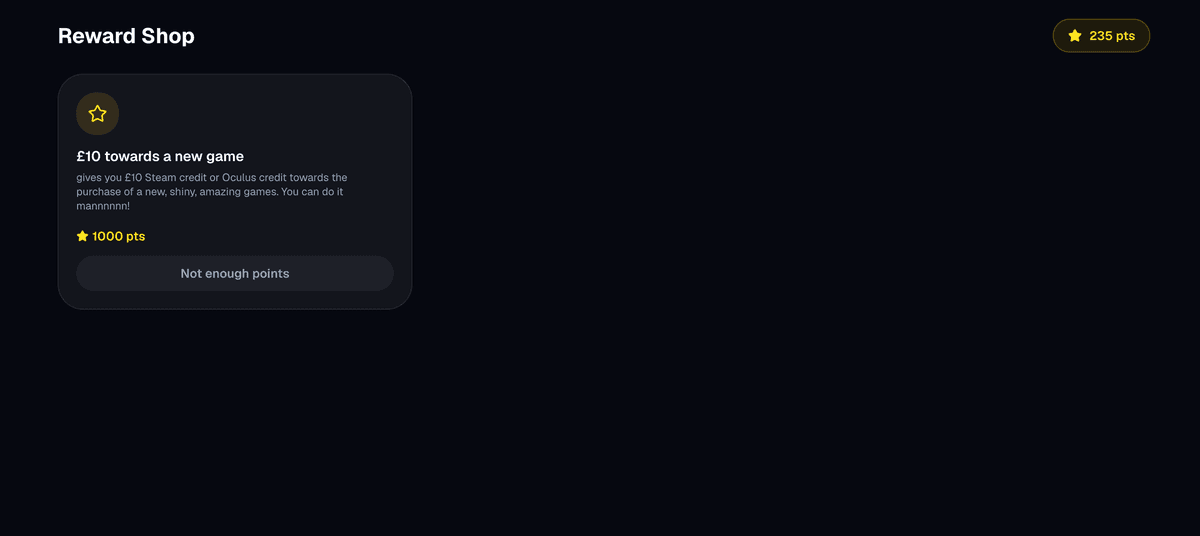
Figure 5: The Student's view of the reward shop.
The redeem logic does the boring but critical maths correctly. It checks that he actually has enough points before letting him spend, deducts the points by writing a negative entry to the points ledger, and records the redemption. You cannot redeem a reward you cannot afford, and the server enforces that, not the button.
Step 5: Exporting the Learning History
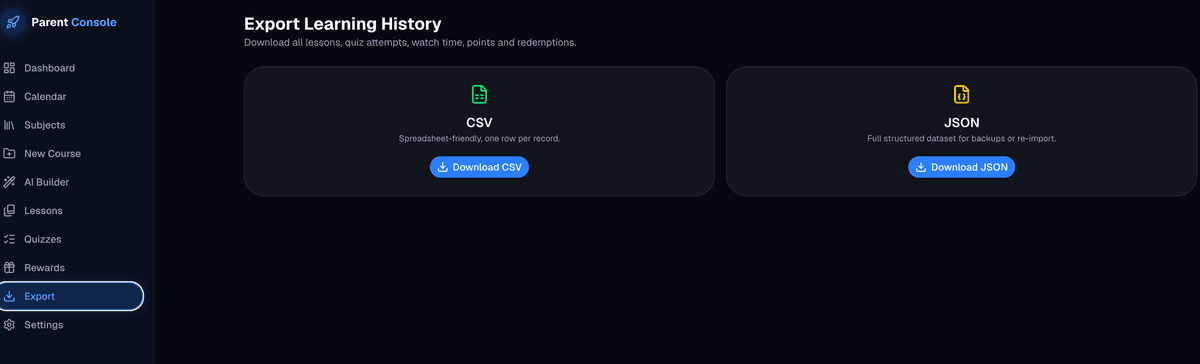
Figure 5: The backup and download page where you can export learning history
One of my least favourite things about most learning apps is that my data is trapped inside them. So I built an export that downloads everything: subjects, lessons, quiz attempts, video watch time, the full points ledger, and redemption history, and as either CSV or JSON.
This runs as a Convex action, which can use the Node runtime and run for up to ten minutes, so it will not time out as the data grows. (Function timeout in Vercel is always annoying so we avoid this) It aggregates the data through a parent-only internal query, formats it, and streams it back as a file download.
The CSV is spreadsheet-friendly. The JSON is a full structured backup I could re-import if I ever needed to. The permission check lives inside the action's query, so even if someone found the endpoint they would still need the parent role to get anything back.
Step 6: The Friday Challenge
The whole point of HomeschoolHero is that learning should feel like a game, not a chore. So from the very first plan we wrote a rule into the system. Every Friday there is a mandatory review quiz that pulls together what was learned that week and pays out double points. Think of it as the weekly boss battle.
It is not just for fun. Spaced review is one of the best-evidenced ways to actually retain what you learn, and forcing a recap at the end of each week means nothing gets quietly forgotten. And because it is worth double points, my son has a real reason to take it seriously.
I did not want to hand-write a Friday quiz every week. That would be exactly the kind of admin work this app is supposed to remove. So the Friday Challenge generates itself.
Stage | How it works | Why it matters |
|---|---|---|
Generated weekly | A scheduled job runs every Monday at one minute past midnight. It looks at the lessons my son completed in the previous week, gathers their quiz questions, shuffles them in a way that is stable for the whole week, picks ten, and saves a Friday Challenge ready for Friday. | It runs on the Convex backend whether or not a browser is open. A true background job, not something the app has to remember to trigger. |
Fallback for week one | On the very first week, when there is no history yet, the generator reaches into any published lessons and builds a challenge from those. | The boss battle works the moment there is content. It does not sit empty waiting for weeks of history to build up. |
Boss-level intro | A purple-tinted start screen with a wobbling crossed-swords icon and the words "2× points active". | It reframes the quiz from a test to an event. |
One question at a time | Four answer options, instant green or red feedback, a short explanation, then a slide animation into the next question. | Each question is tagged with its subject, so the results screen can break performance down by subject. |
Double points | A single server mutation works out how many he got right, calculates the points (twenty per correct answer, doubled on Fridays), writes the quiz attempt, and writes a points-ledger entry tagged | Both writes happen in the same transaction, so the points and the attempt can never get out of sync. The browser sends only his answers. The server decides the score. |
When he finishes, the results screen does not just say 7 out of 10. It breaks the score down by subject, so we can see at a glance whether he aced the Maths questions but struggled with the History ones. Anything under 70 percent in a subject triggers a Recommended Review card that names the weak areas and suggests revisiting those lessons before next week. This is the bridge into the next post, where the app will start adjusting difficulty automatically.
Where We Are Now
A parent can sign in and is recognised by role.
The parent dashboard shows live counts, charts, and recent activity.
Entire courses can be built in one transactional flow, or single lessons added to existing subjects.
Lessons can be published and unpublished, and drafts stay hidden from the student.
Rewards can be created, priced, toggled, and redemptions approved.
The full learning history exports to CSV or JSON.
A weekly boss-battle quiz generates itself every Monday, is themed and animated, doubles the points transactionally, and tells us exactly which subjects to review.
The student and parent sides now form a complete loop. I build the content, my son learns from it, his progress flows back to my dashboard in real time, and I can reward him and export the record. Then on Friday he battles, earns double points, spends them in the shop, and we both get told what to brush up on. That is a minimum viable product, end to end.
What Comes Next
The next post makes the app respond to how my son is actually doing. Adaptive difficulty that dials up when he is acing a topic, and a Get Help drawer that slides open the moment he scores below 60 percent. And then the feature I have been waiting for — the AI lesson builder, where I plan to give the agent a topic and have it research and draft a full lesson with a video suggestion and quiz questions, and let me review and approve it before it reaches my son.
The takeaway from this stage is simple. Building the parent tools first, alongside the student experience, is what turns a demo into a product. A shiny dashboard means nothing if there is no way to put content behind it. Now there is.
This is the third in a series of five posts. We will keep updating as each phase ships.